Introduction
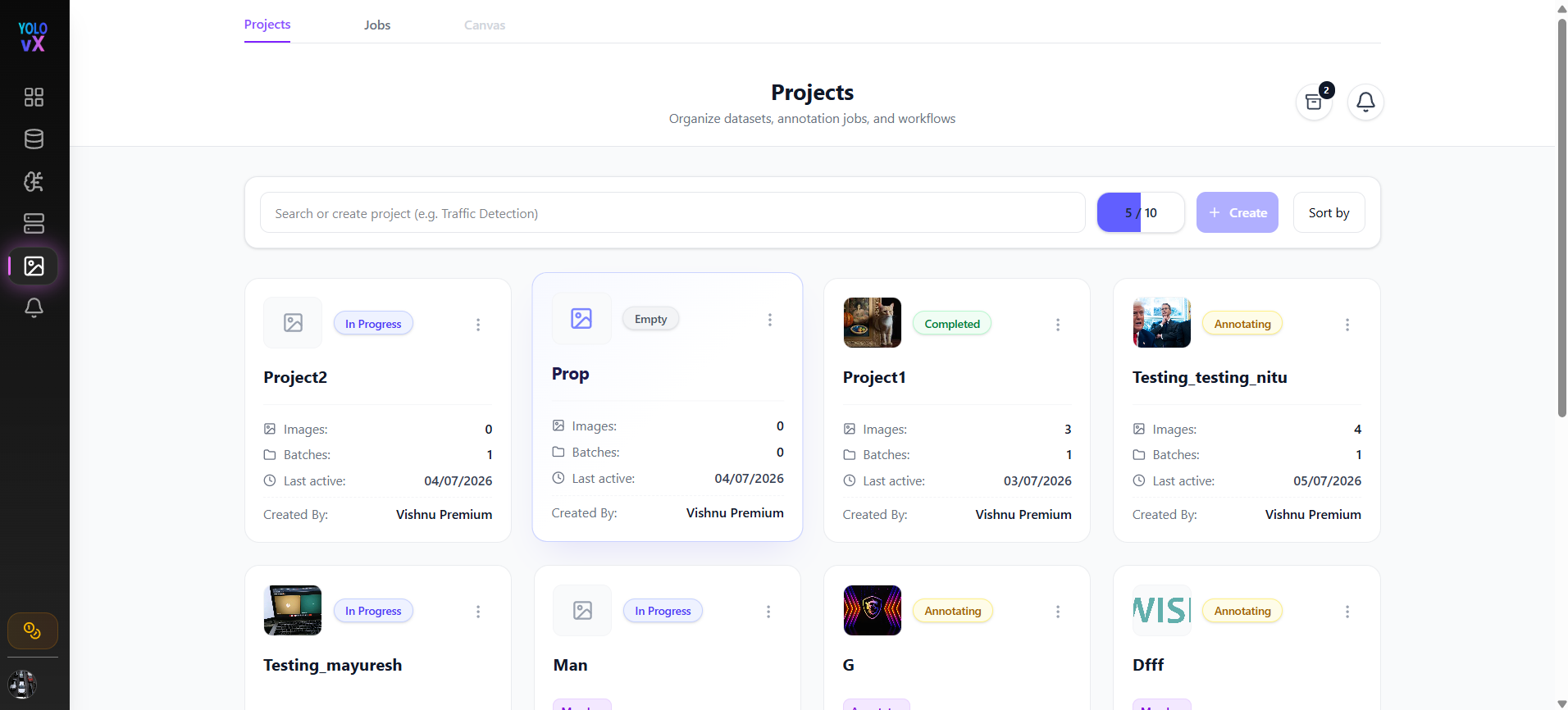
The Projects page is the central workspace where you can create and manage, and organize annotation projects by simply entering a project name in the Create Project input box. Each project represents a collection of job batches, and each job batch contains a set of images along with their annotation progress and metadata.
Overview
On this page, you can:
- View all your projects in a card-based layout.
- Create new projects.
- Search and sort existing projects.
- Track annotation progress.
- Access shared projects.
- View project-related notifications.
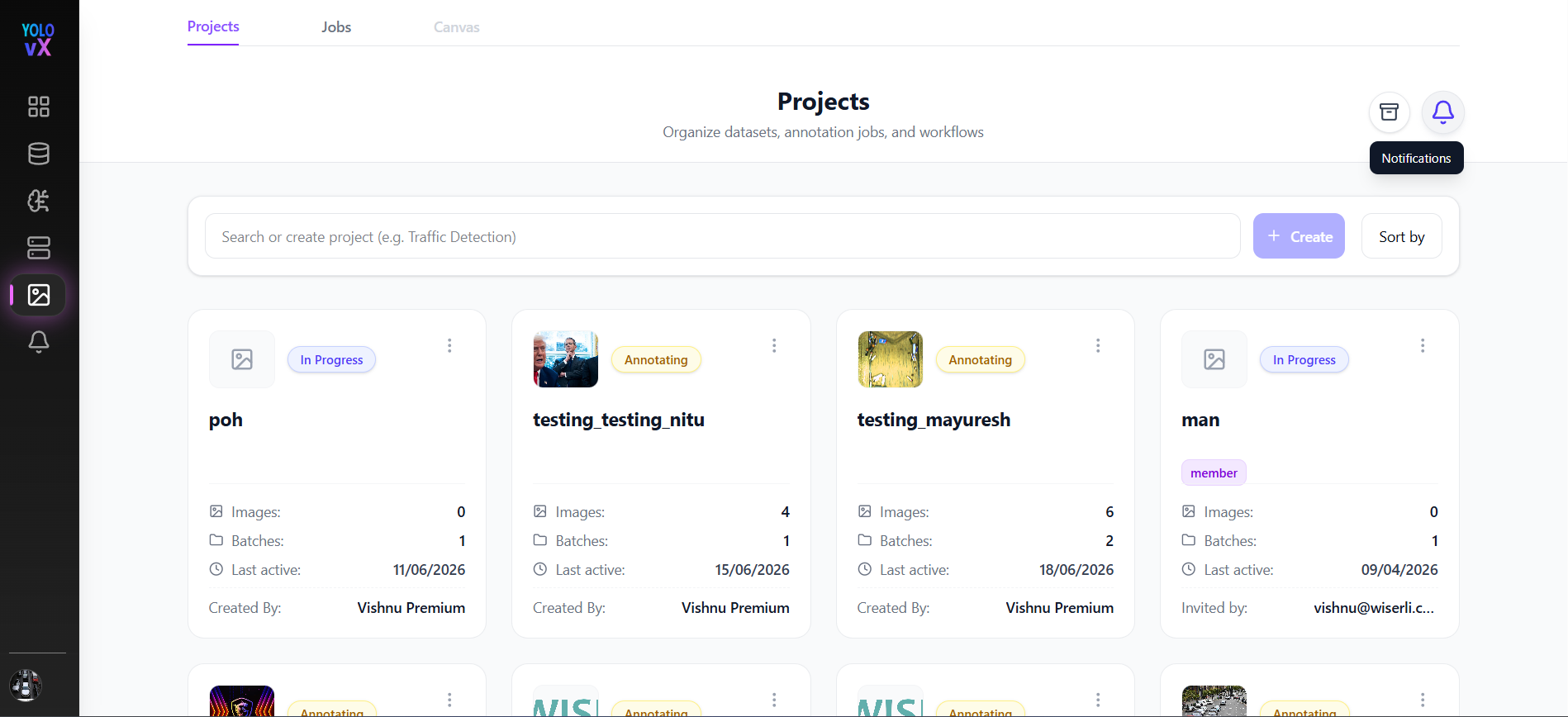
- Archive projects that are no longer actively used.
- Restore archived projects when needed.
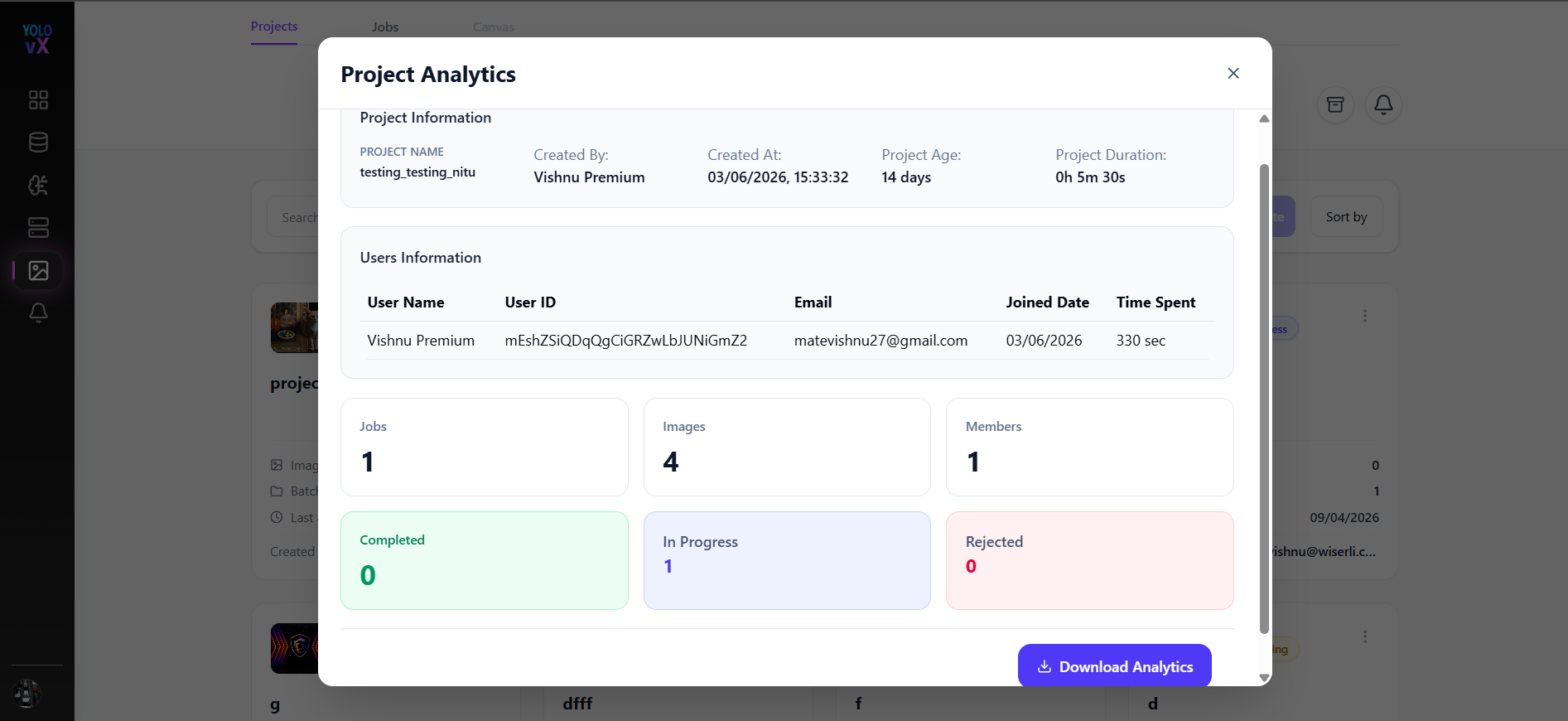
- View Analytics of Projects
Project Search & Creation
At the top of the page, you will find:
- Search Bar – Search existing projects by name.
- Create Button – Create a new project by entering a project name (e.g., Traffic Detection).
- Sort By – Sort projects based on date, name, or number of images.
Notifications
The notification icon in the top-right corner provides updates related to:
- Project sharing activities.
- Annotation job assignments.
- Project status updates.
- System-generated project alerts.
Click the notification icon to view recent updates and actions related to your projects.
Achieve Project and Unarchive Project
Move the project from the active project list to the archive section while preserving all project data.
Restore an archived project back to the active project list.
Project Cards
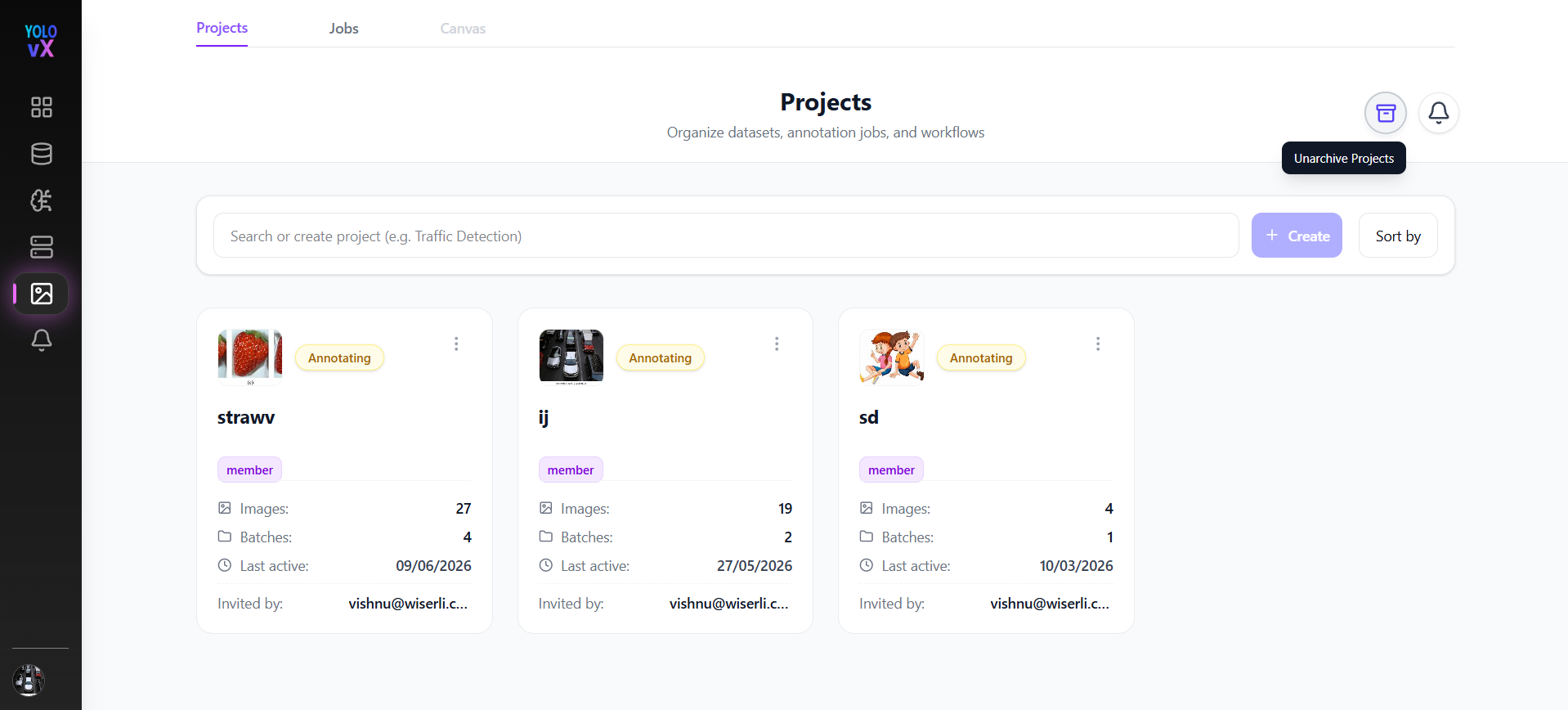
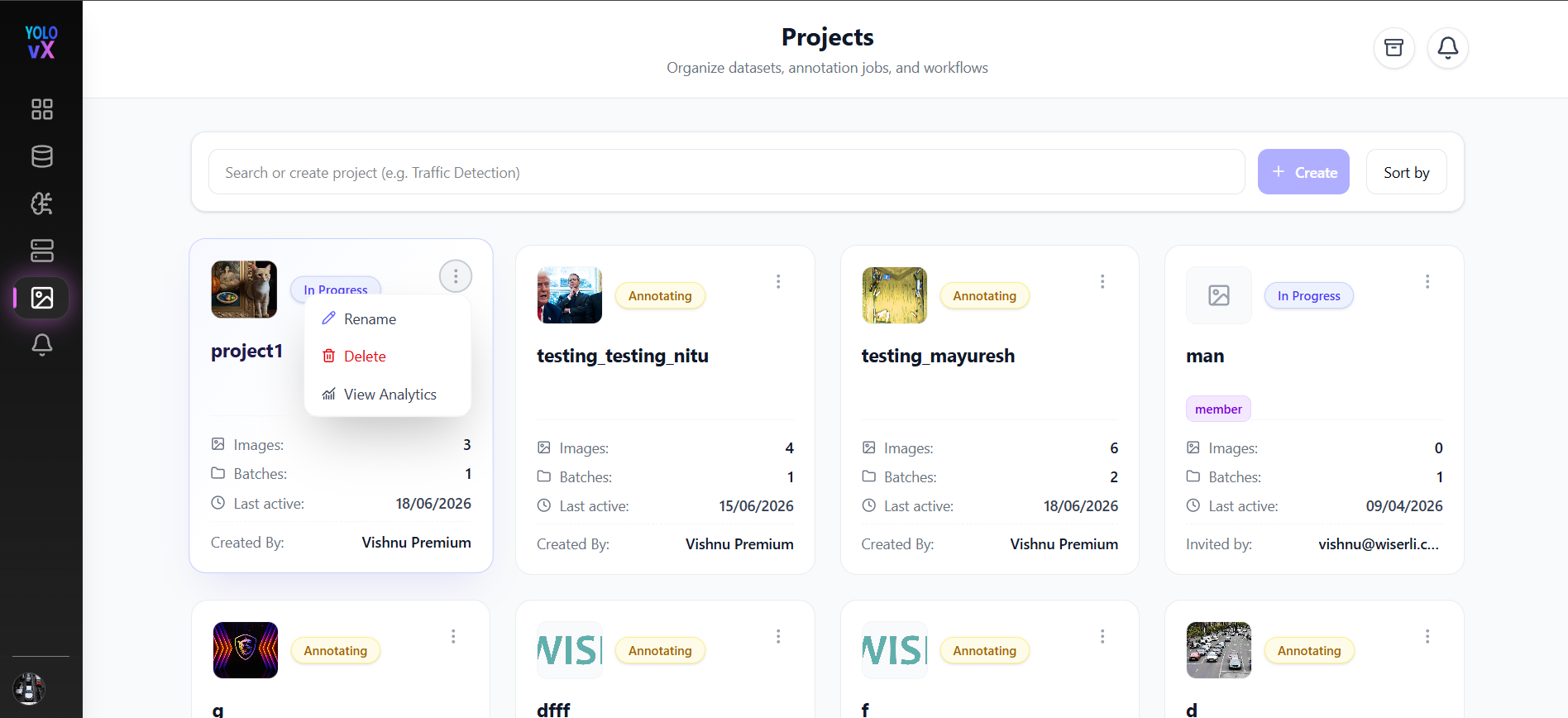
Each project is displayed as a card containing the following details:
- Project Thumbnail – A preview of images in the project.
- Status Tag – Shows the current state of the project (e.g., Annotating).
- Shared Tag – Indicates if the project has been shared with you.
- Total Images – Number of images in the project.
- Created Date – When the project was created.
- Last Edited Date – When the project was last updated.
- Created By – The user who created the project.
- More Options Menu – Click the three dots to access actions such as Rename , Delete and View Analytics.
Project Actions
Click the three-dot menu on a project card to access the following actions:
Opening a Project
On clicking a project card, you will be redirected to the Job Creation section, where you can:
- Create multiple job batches within the selected project
- Upload images for annotation
- Manage annotation workflows for that project
Rename Project
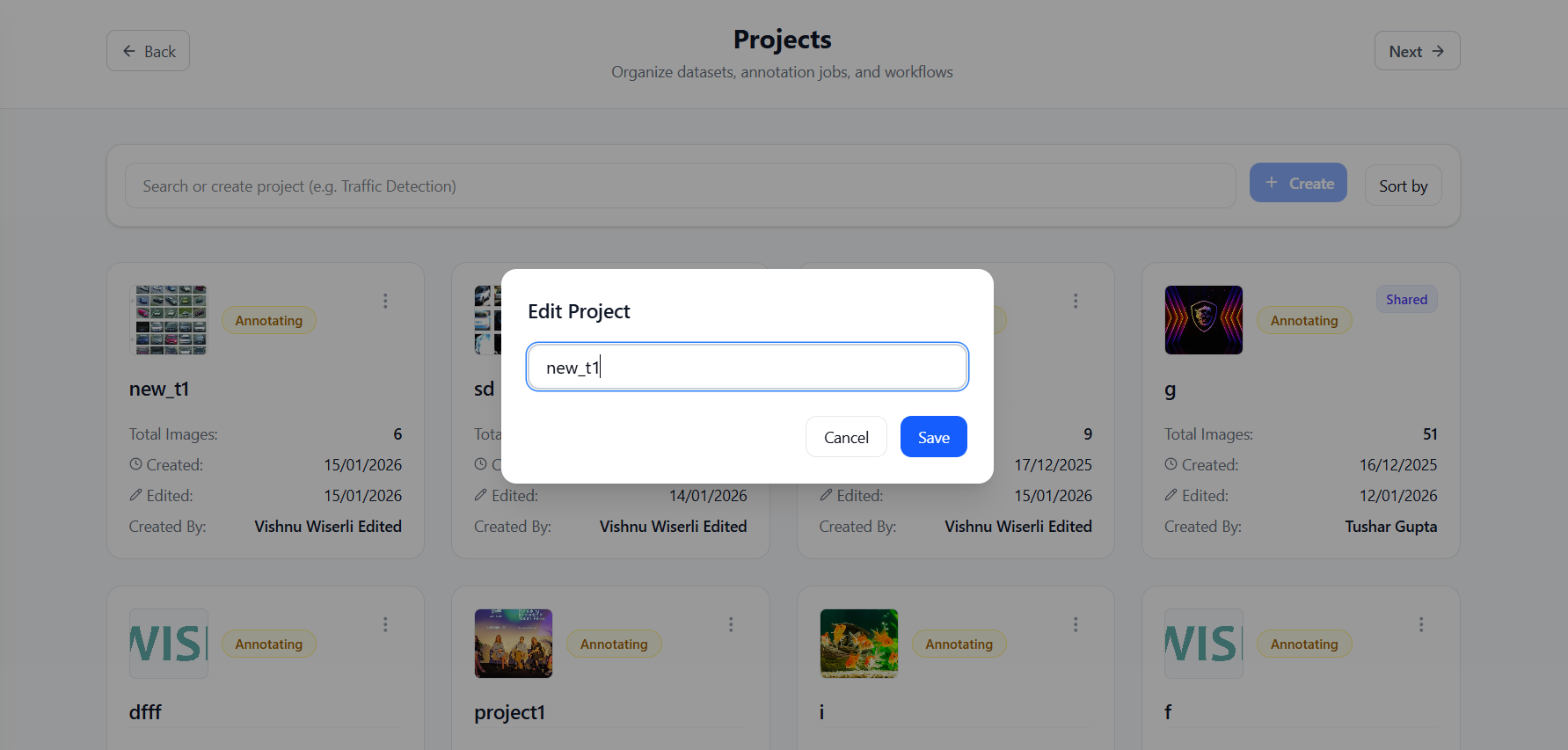
Click Rename from the options menu to open the Edit Project popup.
Update the project name and click Save to apply changes or Cancel to discard them.
Delete Project
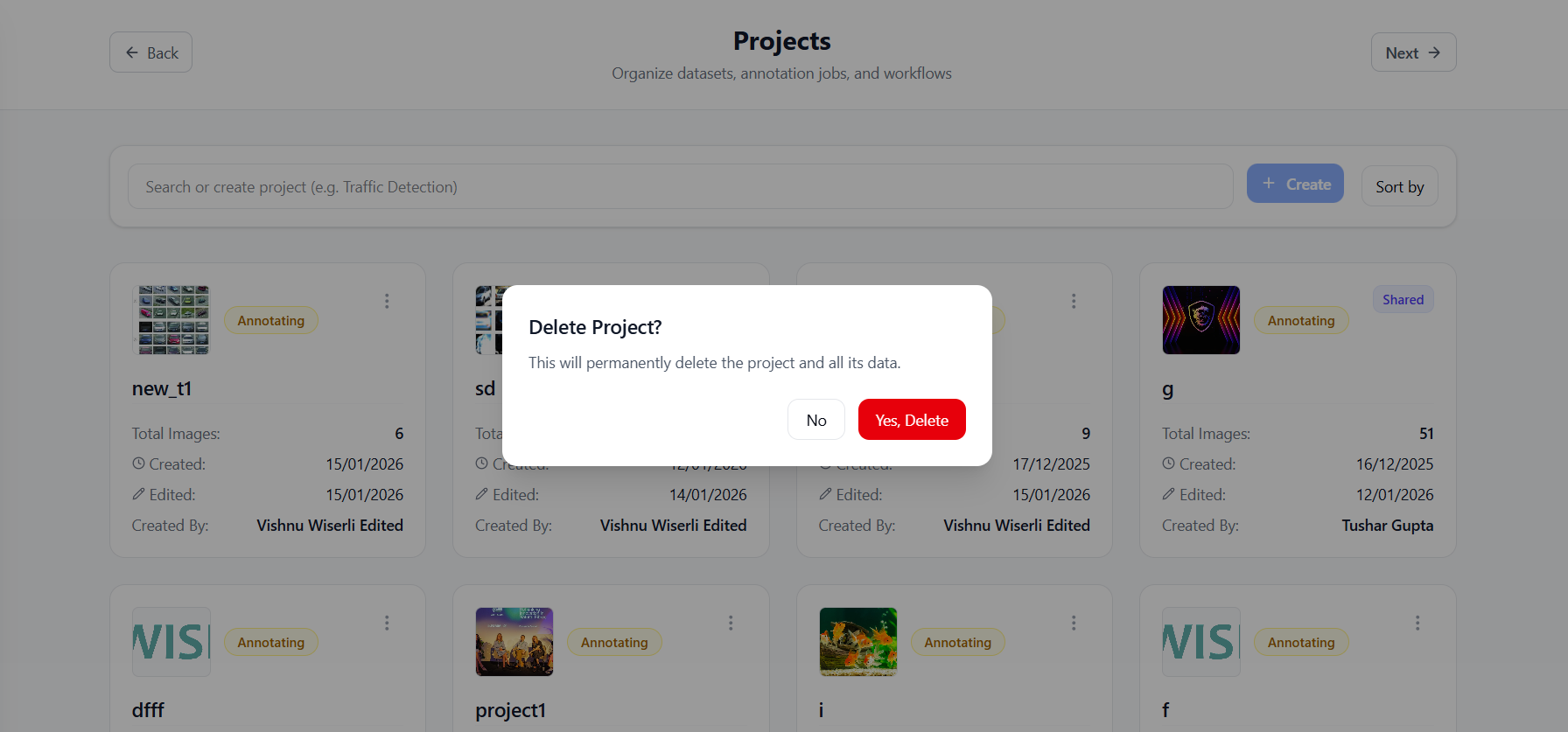
Click Delete to open a confirmation popup.
If you confirm, the project will be permanently deleted.
Click Cancel to return without deleting.
View Analytics
Open the Project Analytics page to review project statistics, team contributions, and annotation progress.