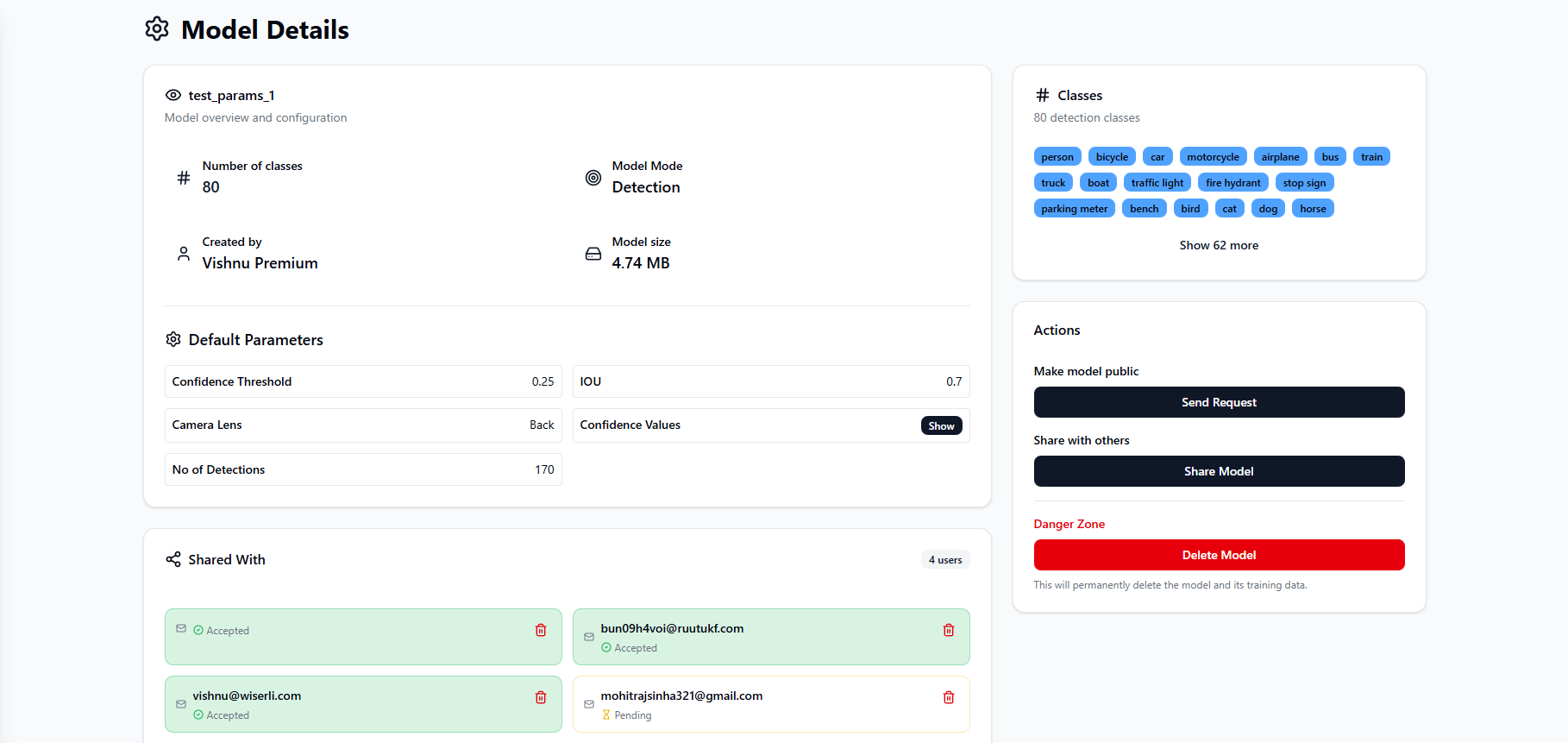
Models – Model Management Dashboard
The Models page allows users to manage all object detection models available in their workspace. This includes both private models created by the user and shared models provided by teammates or the platform.
This page serves as the central hub for selecting, organizing, and managing models used for training, inference, and deployment.
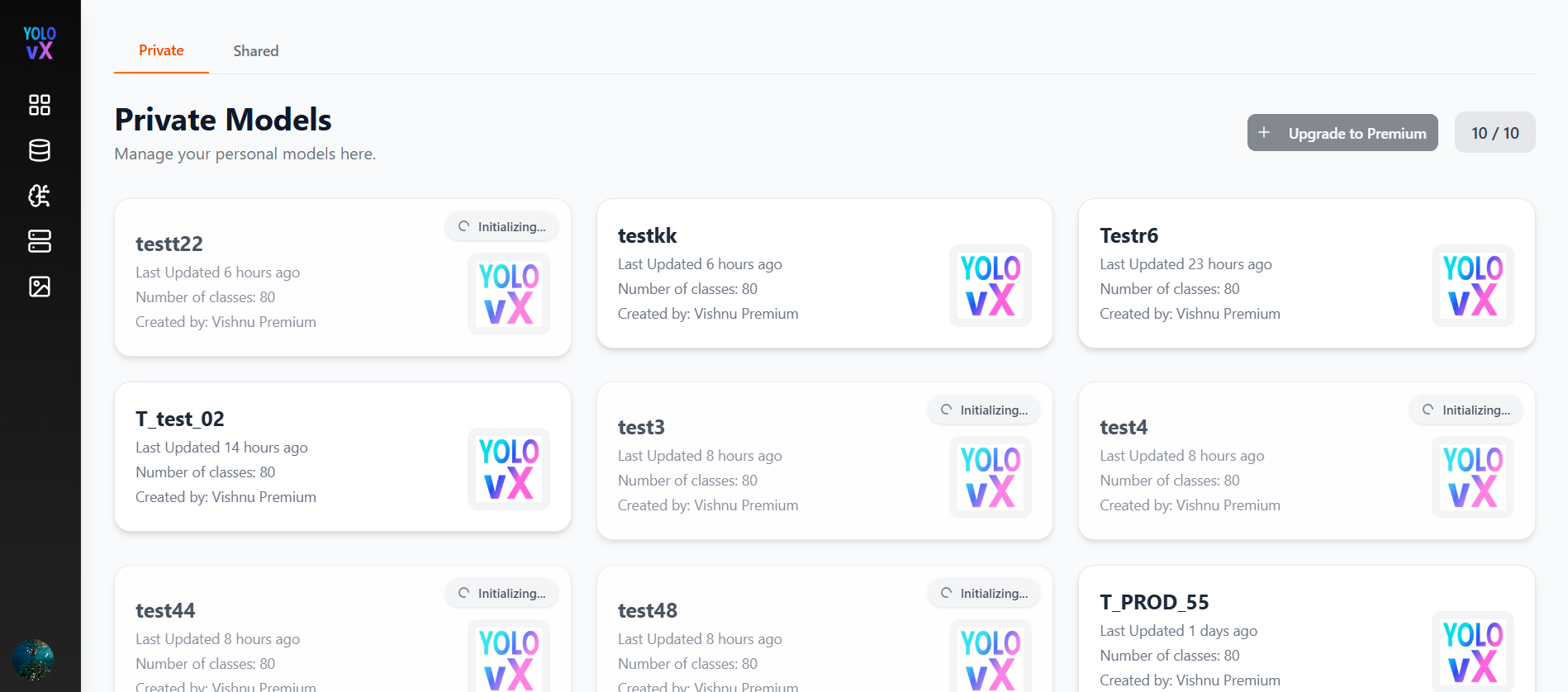
Page Overview
The Models page is divided into two main sections:
- Private Models – Models created and owned by the user.
- Shared Models – Models shared with the user by others or provided by the platform.
Each model is displayed as a card with key information and quick access.
Top Header & Controls
The top-right header button changes based on the number of private models:
-
If fewer than 5 private models:
Add New Model button is displayed, allowing users to create a new model.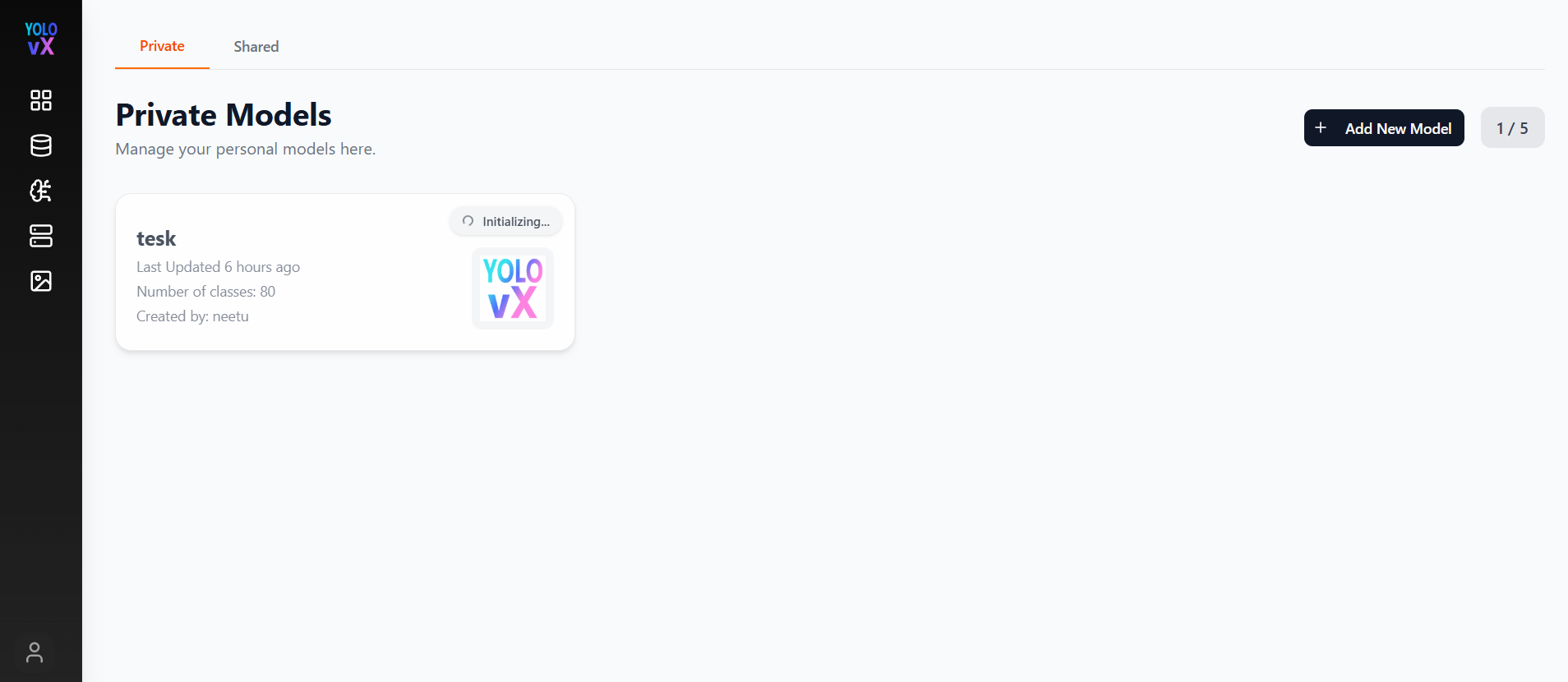
-
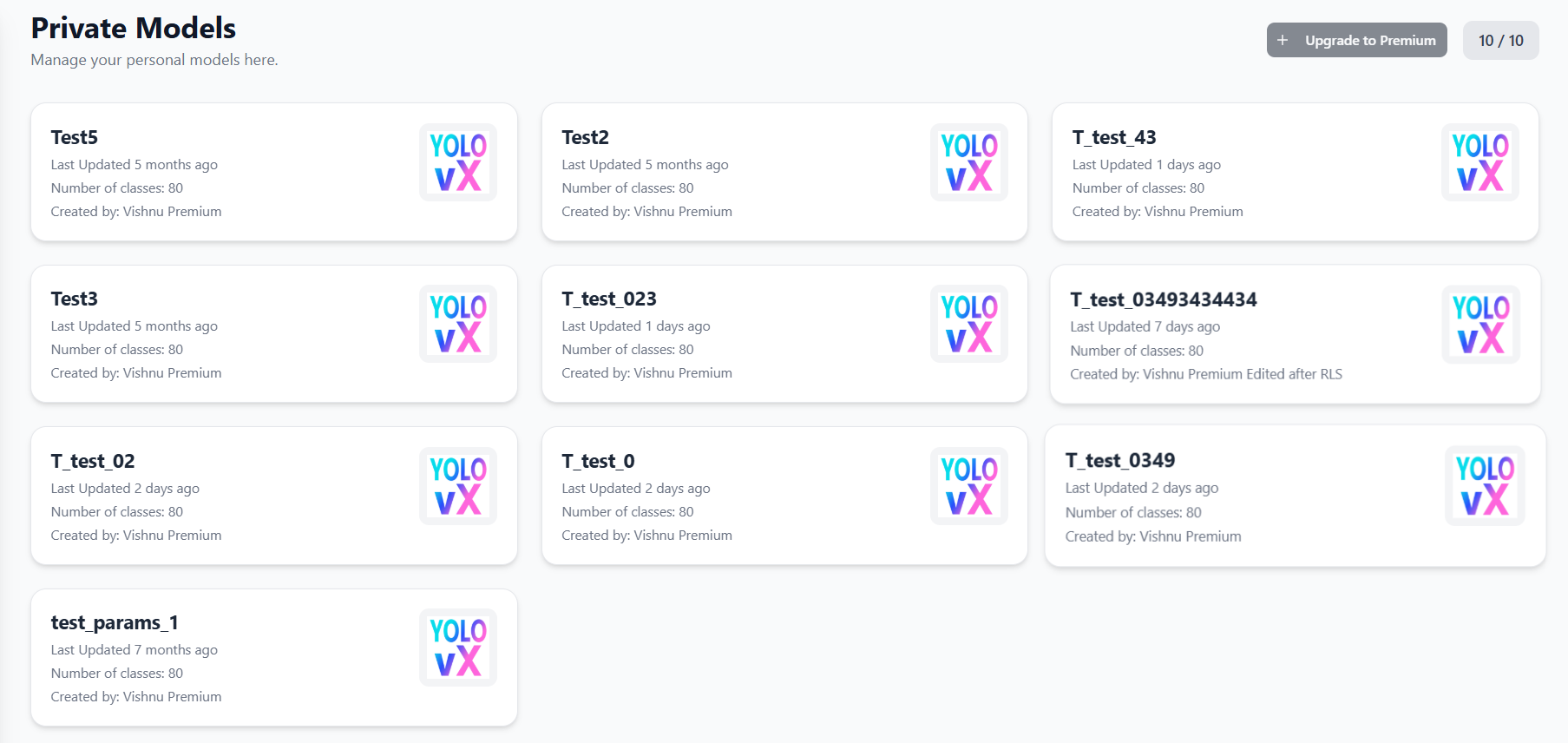
If 5 or more private models:
Upgrade to Premium button is displayed, prompting users to upgrade their plan to add more models. -
Model Usage Counter (e.g., 5 / 5) – Displays the number of models used versus the allowed limit for the current plan.
Private Models Section
This section lists all models created by the user.
Each model card includes:
- Model Name – Name of the model (e.g., Test5, Test_pothole_best).
- Last Updated – When the model was last modified.
- Number of Classes – Total object classes the model can detect.
- Created By – Name of the creator.
- Model Icon – Visual identifier for the model.
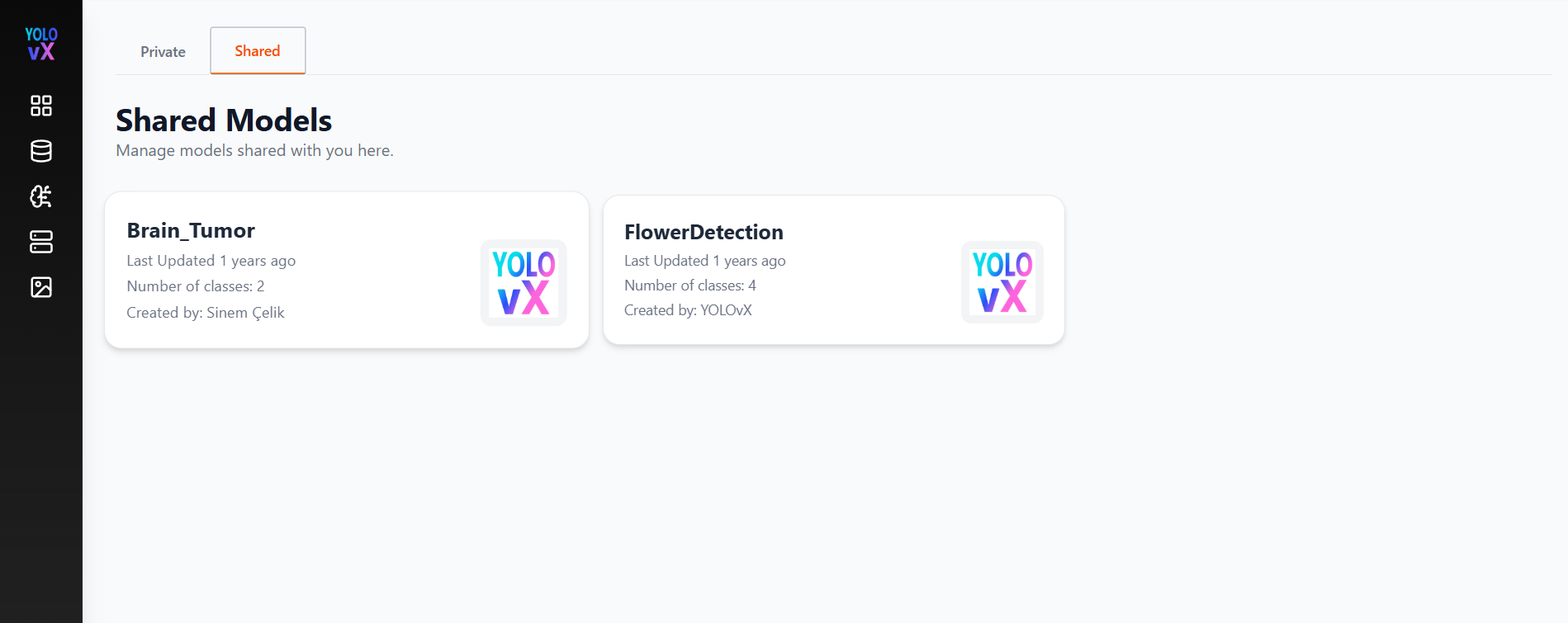
Shared Models Section
This section displays models shared with the user or provided by the platform.
Each model card shows:
- Model Name (e.g., YOLOv8n-Seg, FlowerDetection)
- Last Updated
- Number of Classes
- Created By (e.g., platform or another user)
These models can be used for training, annotation assistance, and deployment depending on access permissions.
Add New Model Flow
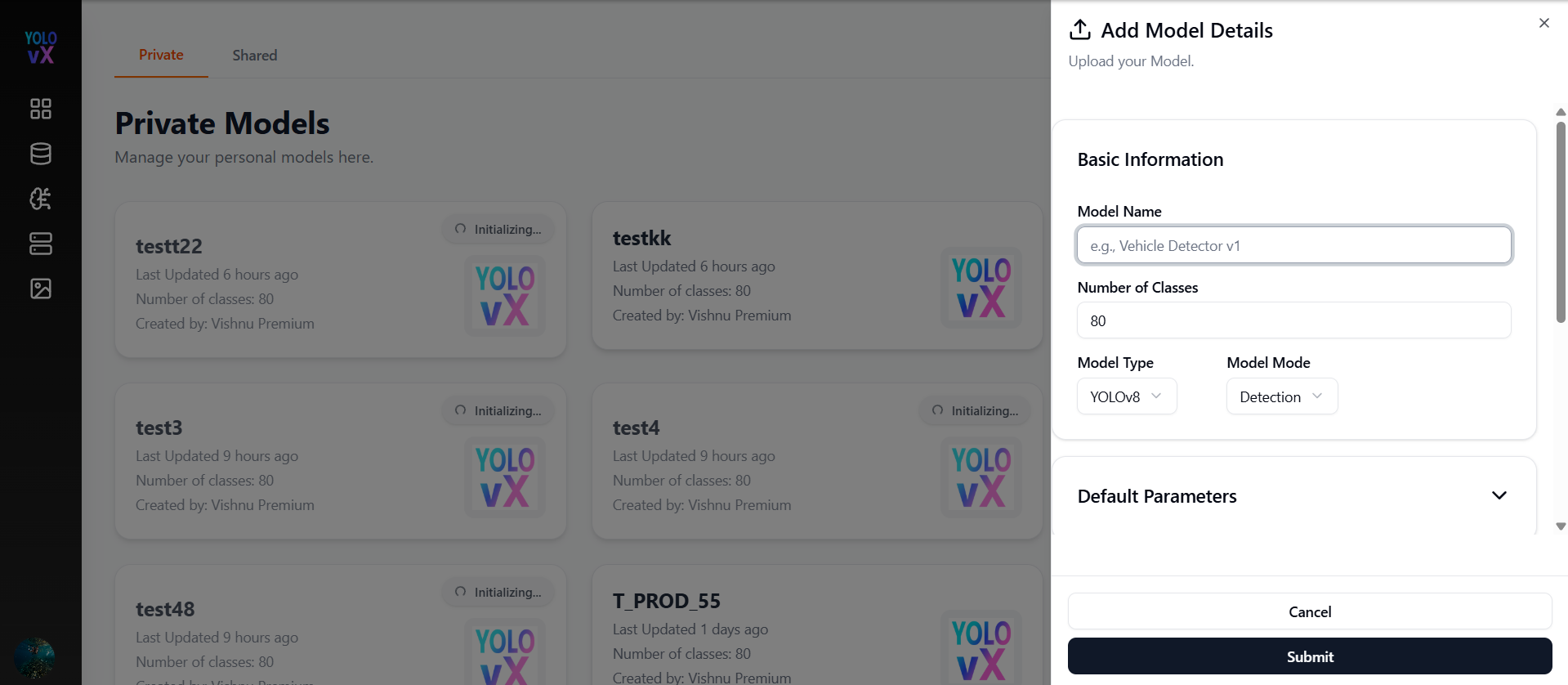
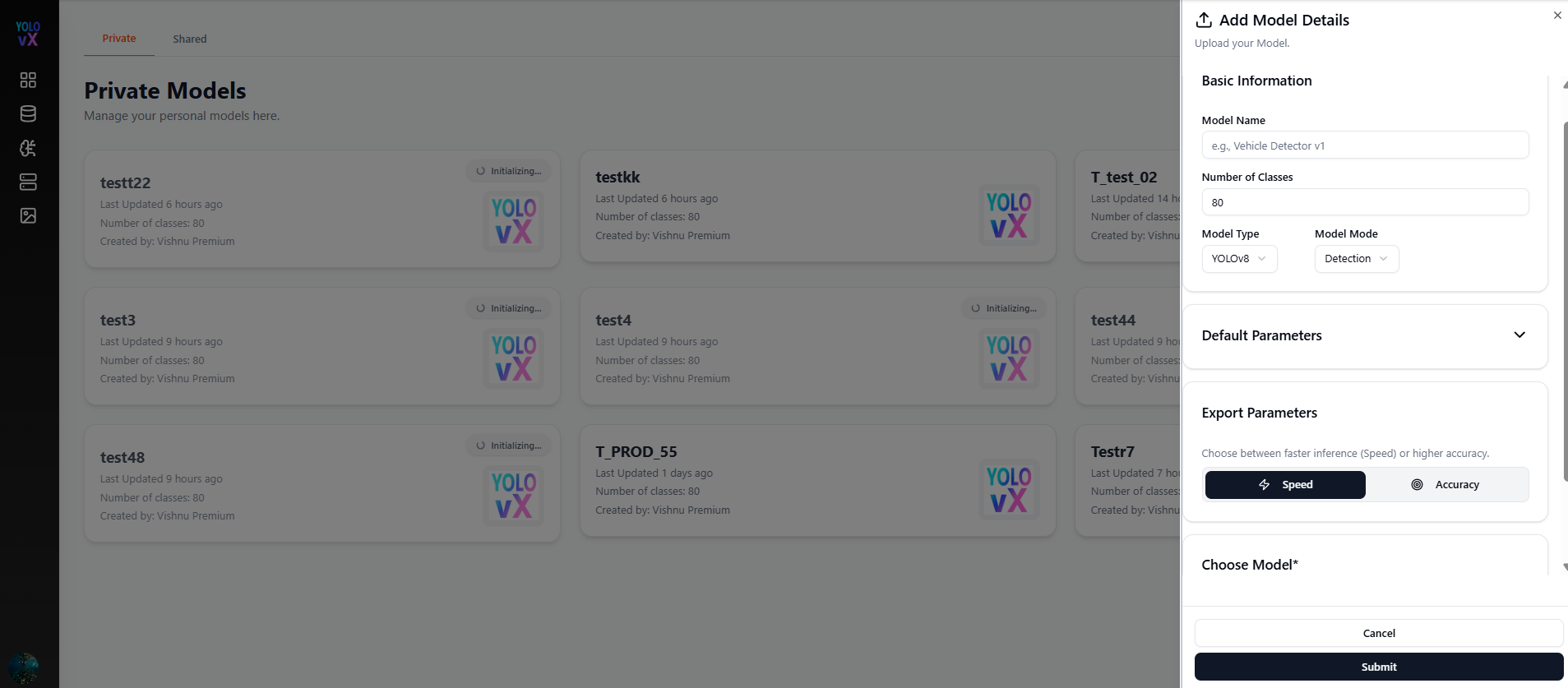
When the user clicks ➕ Add New Model, a side panel (drawer) opens titled “Add Model Details”, allowing the user to upload and configure a new model.
Add Model Details Fields
Basic Information
- Model Name – Text input (e.g., Vehicle Detector v1).
- Number of Classes – Numeric input (default: 80).
- Model Type – Dropdown (e.g., YOLOv8).
- Model Mode – Dropdown (e.g., Detection).
Default Parameters
Users can configure default inference settings:
- Confidence Threshold – Adjustable with ± controls (default: 0.25).
- IOU Threshold – Adjustable with ± controls (default: 0.5).
- Max Detections – Adjustable with ± controls (default: 10).
- Show Confidence – Toggle switch to show or hide confidence scores for detections.
Actions
- Submit – Saves and adds the new model.
- Cancel – Closes the drawer without saving.
Model Card Actions
When you click on a model card, you can typically:
- View model details and configuration.
- Select the model for:
- Training
- Annotation assistance (Auto Labeling)
- Deployment
- Manage model versions (if supported).
- Delete or archive models (for private models only).