Mobile Sync Pipeline
The YOLOvX Mobile Sync Pipeline enables real-time frame capturing and instant synchronization between the YOLOvX Mobile App and your YOLOvX Web Annotation Canvas.
With this pipeline, field engineering teams can collect edge cases or field data and stream captured frames directly into web annotation jobs without manual file transfers.
Step 1: Open the Mobile Sync QR Code on Web
- Log in to the YOLOvX Web Application.
- Navigate to Annotations → Jobs (or open your target project in Progress Intelligence Hub).
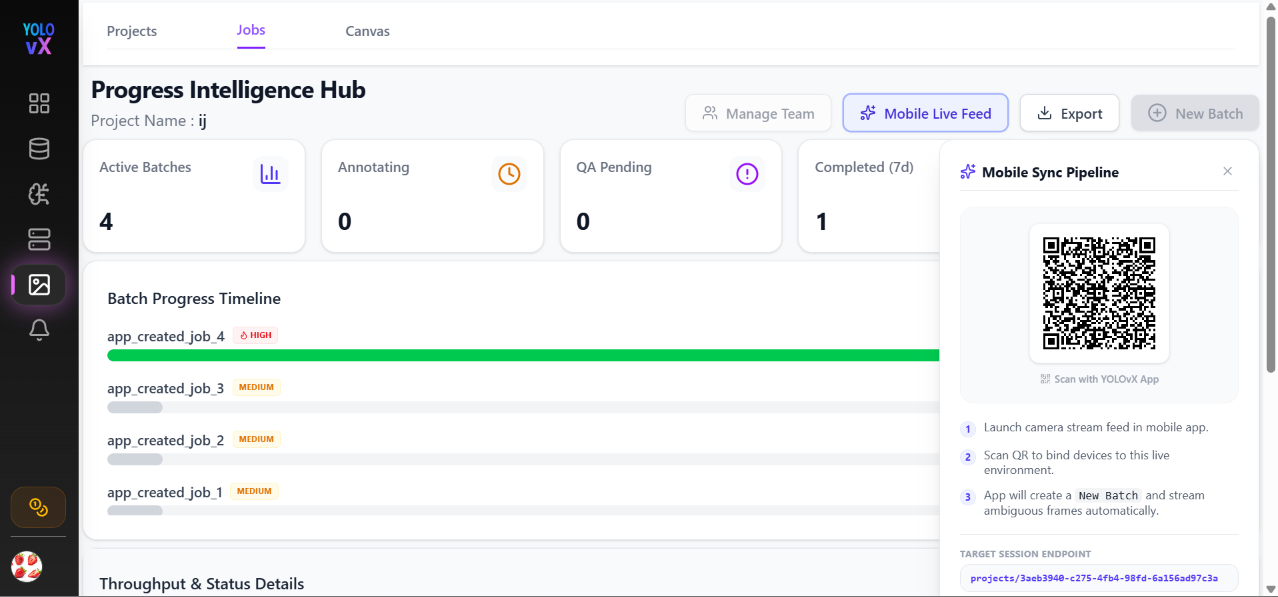
- Click the Mobile Live Feed button in the top action toolbar.
- A Mobile Sync Pipeline modal will appear displaying a unique session QR code and target session endpoint.
Step 2: Pair Mobile App via QR Code
- Open the YOLOvX Mobile App on your iOS or Android device.
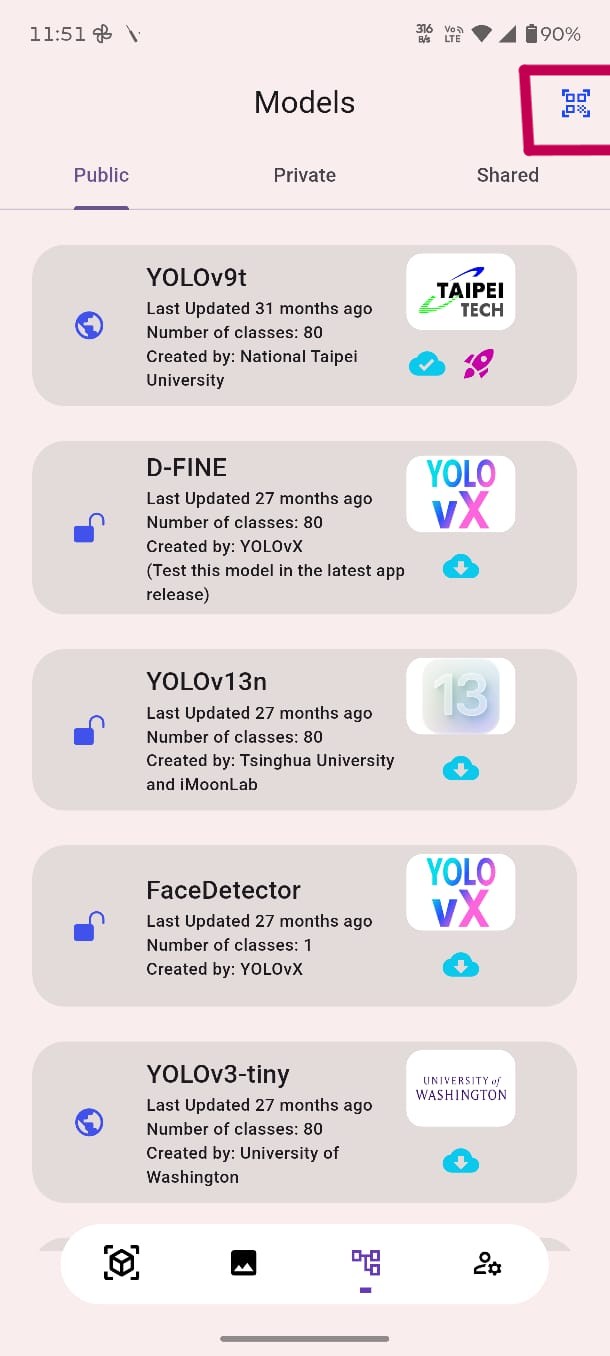
- Tap the Scan Project QR icon in the header.
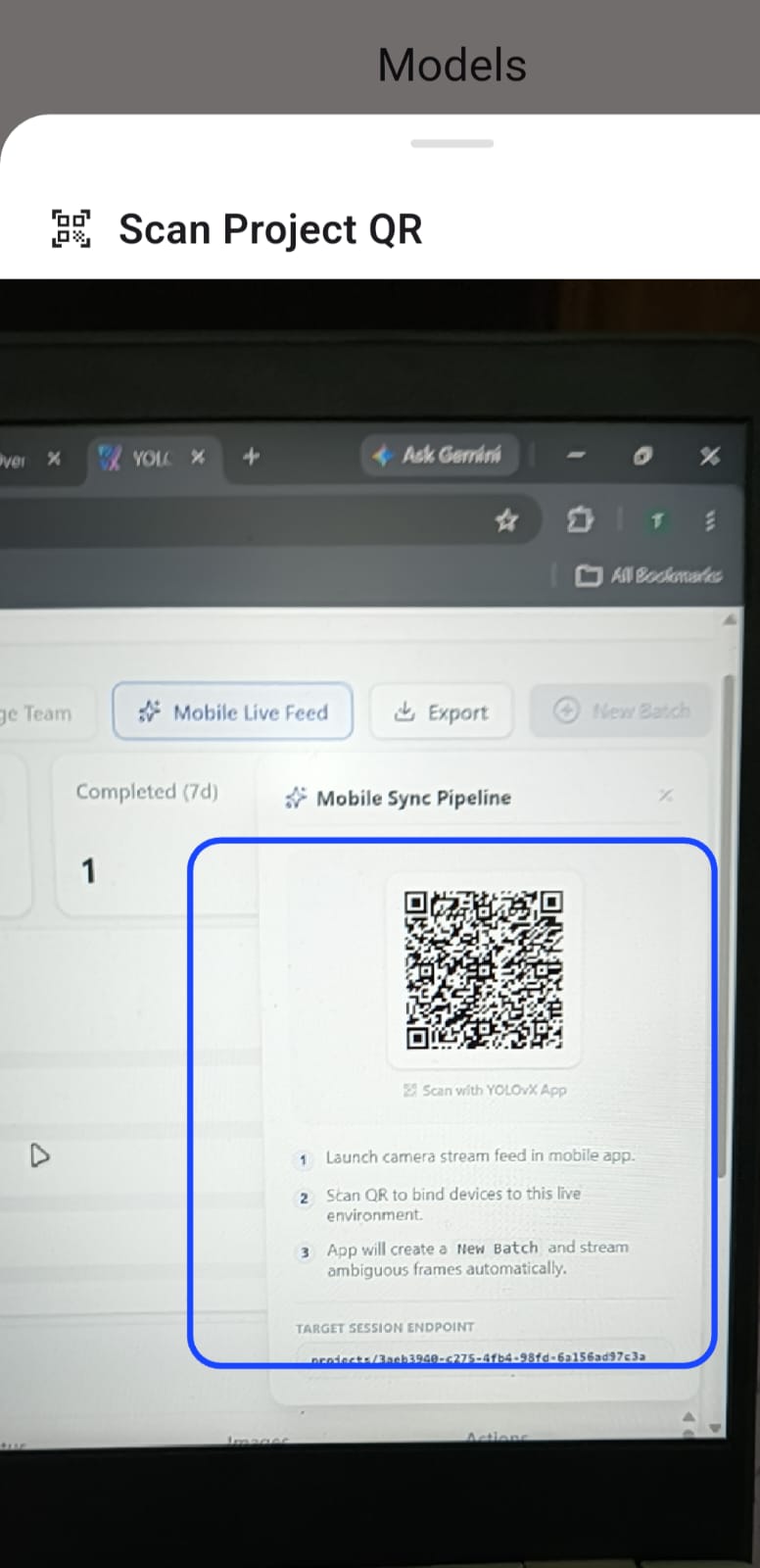
- Align your smartphone camera with the QR code displayed on the YOLOvX Web interface.
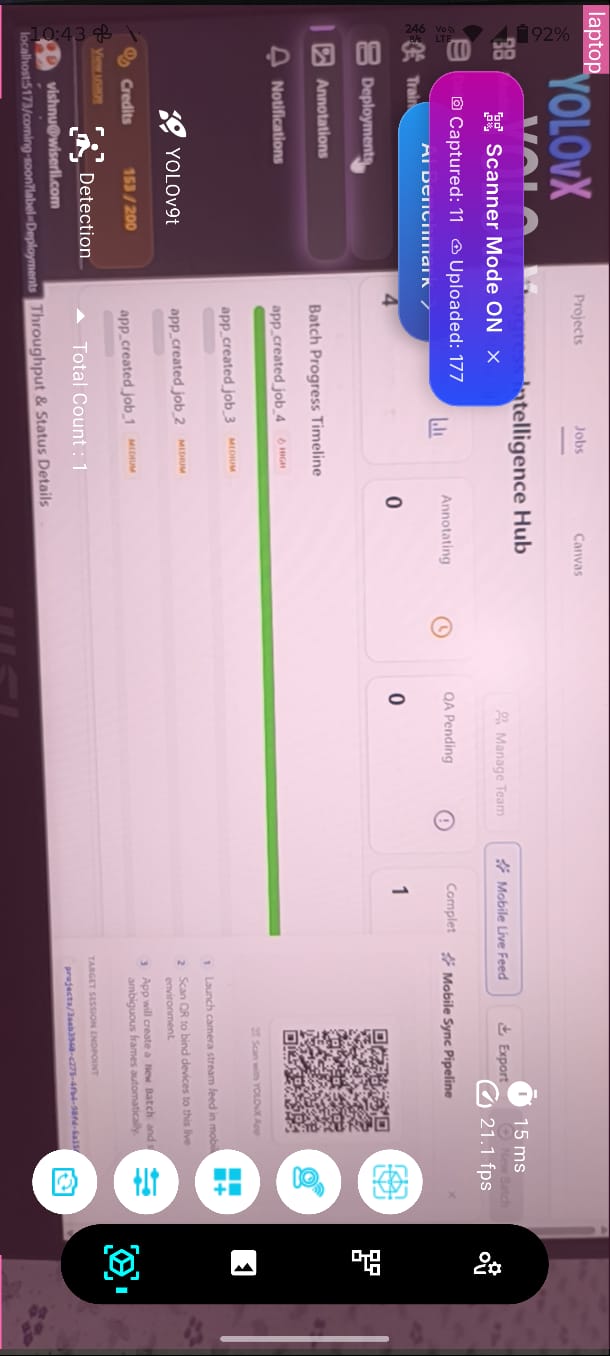
| Mobile Scanner View | Scanning Web Screen |
|---|---|
 |
 |
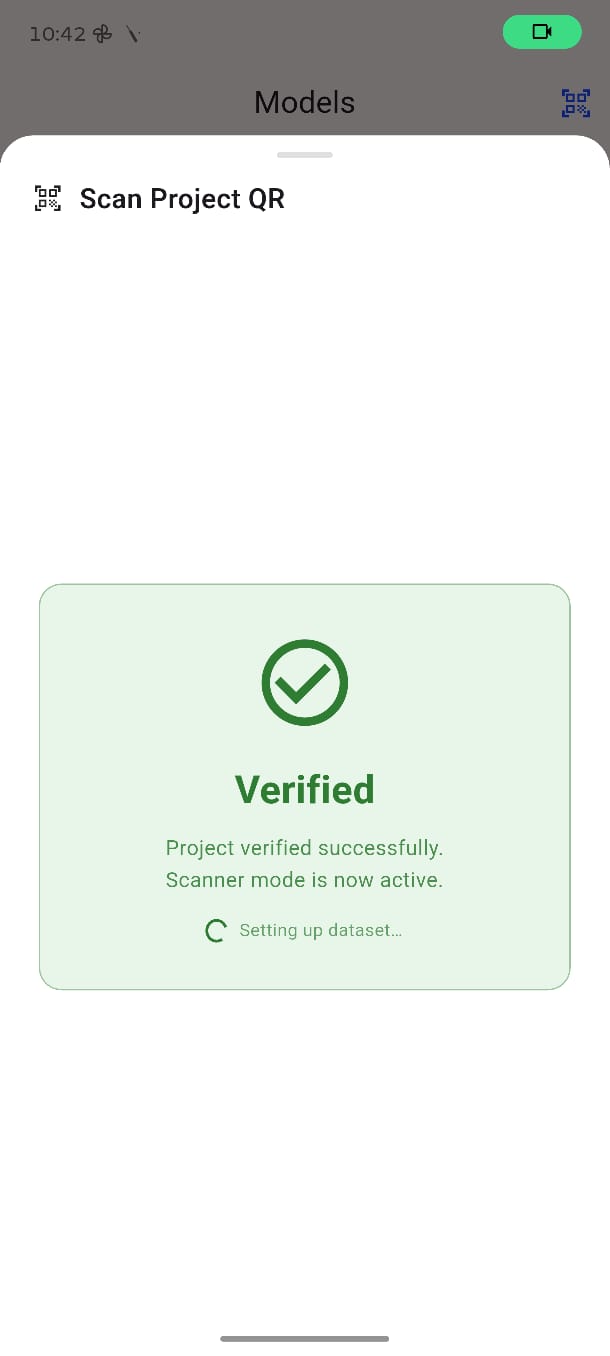
- Once scanned, the mobile app will display a Verified card: "Project verified successfully. Scanner mode is now active."
Step 3: Stream & Capture Live Detection Frames
- After verification, launch the camera feed inside the mobile app.
- The active Scanner Mode ON banner will show real-time metrics for Captured and Uploaded frames.
- Frames exhibiting low model confidence or edge-case detections are automatically captured during the live session.
Step 4: Review Batch & Upload to Web Workspace
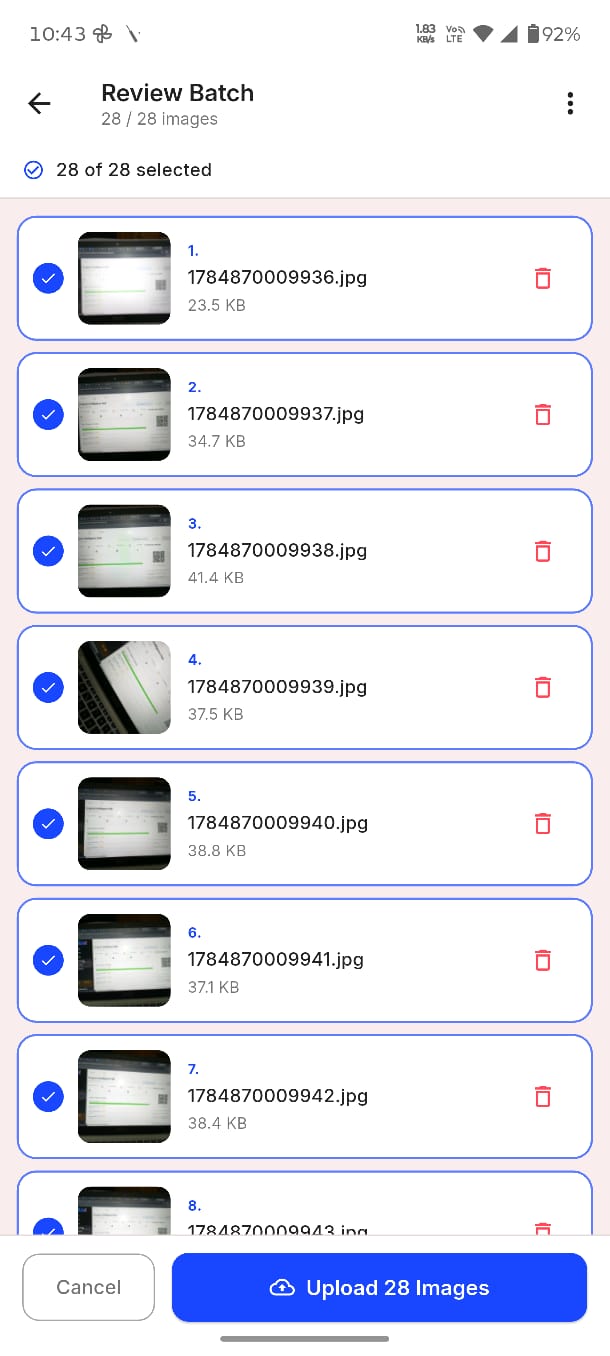
- When field collection is complete, tap Review Batch on your mobile app.
- Review all captured images, select/deselect specific frames, or remove blurry shots.
- Tap Upload Images to send the batch directly into your web project workspace.
Step 5: Instant Synchronization to Web Canvas
- Return to the YOLOvX Web App workspace.
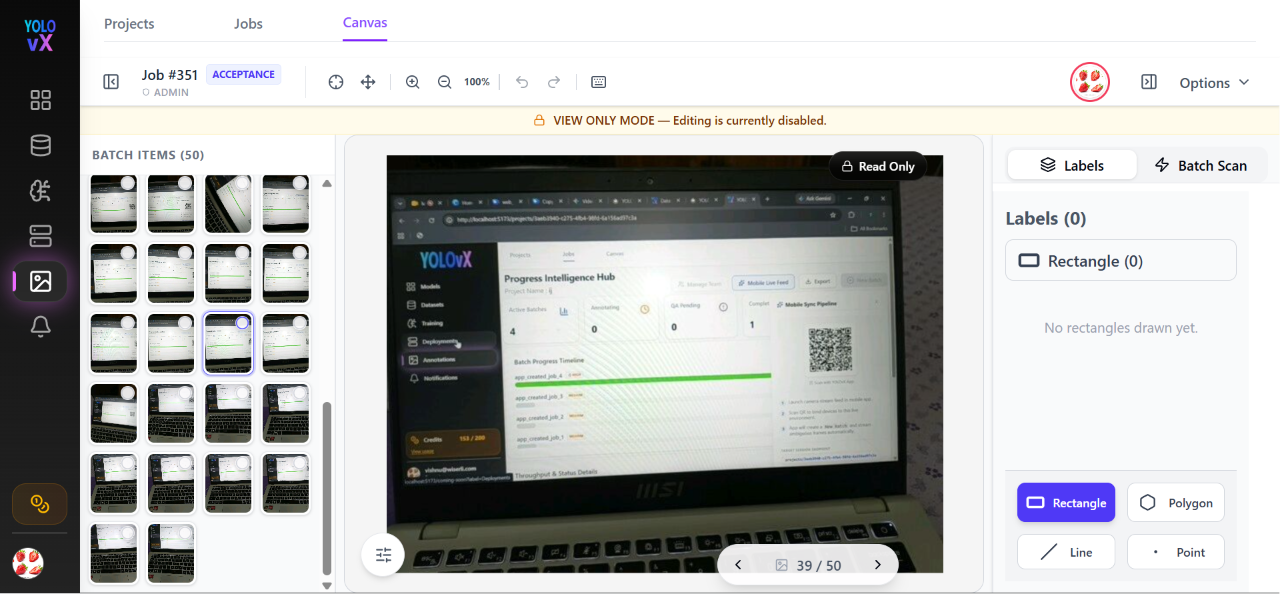
- Under the Canvas or Jobs tab, a new batch (e.g.,
Job #351) will automatically appear with all synchronized mobile frames. - Annotation team members can immediately begin Manual Labeling or apply Model Auto-Labeling to the newly synced batch.
💡 Key Benefit: YOLOvX Single Sign-On (SSO) ensures your project permissions, credentials, and dataset batches seamlessly stay in sync across desktop browsers and mobile devices.